
Vertical tabs
Option + S · Alt + S
All your tabs in a sidebar. Toggle it on & off.
Sesh - Tabs, Sessions & RAM Saver
Vertical tabs. Persistent sessions. RAM & Battery saver. All in one.
A side panel for Chrome: vertical tabs, workspaces you can close without losing tabs, and tab sleep that saves RAM and battery.
Works on Chrome, Brave, Edge, and other Chromium-based browsers.
Vertical tabs
Option + S · Alt + S
All your tabs in a sidebar. Toggle it on & off.
Workspaces
Customize, Close & Resume
Stay productive & focused. No more hunting for tabs.
Tab sleep
Upto 77% less RAM, 94% less CPU
Put unused tabs to sleep.
How workspaces work
01
Turn any window into a workspace. Every tab stays linked.
02
Done for now? Close the window. Nothing is lost — that's parking a workspace.
03
Click the workspace to reopen every tab exactly where you left off.
Sesh SuperBrowser 4.2.0
Vertical tabs
Press Option + S or Alt + S. Search, drag, and jump without hunting across a crowded tab bar.
Session manager
Save a window as a workspace. Close it when you are done. Click it later to resume.
RAM & battery saver
Tab sleep caps how many tabs stay loaded. The rest stay in your tab bar but unload from memory. Click to wake.
Extra tools. Same panel.
Control YouTube from the panel. Sleeping videos stay in the playlist.
Access your bookmarks and pick up workspaces where you left off.
Geometry, Zen, Earth, Folio, plus dark and light palettes.
Google, ChatGPT, Grok, DuckDuckGo, YouTube.
Countdown in the panel.
Option + T to jump tabs, Option + W to jump windows.
Vertical tabs. Persistent sessions. RAM & Battery saver. All in one.
Start
After you install, do these. Takes a minute.
01
Click the puzzle icon in Chrome, then pin Sesh so it stays on the toolbar.
02
Sesh is now your new tab page.
03
Chrome asks “Change back to Google?” Click the blue Keep it button. If you clicked Change it back, open chrome://extensions, turn Sesh on, open a new tab, and click Keep it.
Change back to Google?
04
Press Option + S on Mac or Alt + S on Windows. Or click the Sesh icon.
05
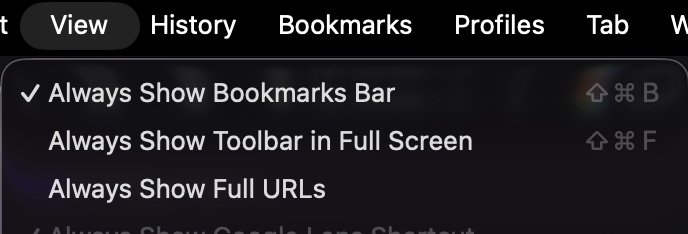
In Chrome’s View menu, uncheck Always Show Toolbar in Full Screen. Then Sesh can use the whole window instead of sitting under the Chrome toolbar.
Option + SAlt + SOpen the side panel from anywhere
Option + TAlt + TJump back to the tab you were on
Option + WAlt + WJump back to the window you were in
FAQ
Click Keep it. That keeps Sesh as your new tab. The prompt is from Chrome, not Sesh.
Open chrome://extensions, turn Sesh on, open a new tab, and click Keep it.
Click the puzzle icon on the toolbar and pin Sesh. Then Option + S (Mac) or Alt + S (Windows) opens the sidebar.
Open View and uncheck Always Show Toolbar in Full Screen. Sesh can then fill the window.
Workspaces, themes, layout, and folders follow you when you sign into Chrome. Free.
In our test with 100 heavy tabs: 77% less RAM (17.5 GB → 4.0 GB) and 94% less background CPU. Your laptop also uses less battery because Chrome uses less CPU.
No. Tabs and workspaces stay in your browser. Sesh does not collect or sell your data.
Message @cr42yd09 on X, use the feedback form, or email fvrtrp@gmail.com.
If Sesh saves you time or RAM, your support helps keep the project alive.
Bugs or ideas? @cr42yd09, feedback form, or email fvrtrp@gmail.com.